Make Automated DMs Feel More Personal with Voice Messages
Not every message is better when it is typed. Sometimes, a quick voice message can communicate warmth, personality, and context in a way that text simply cannot.
With Voice Messages in Lnkk, you can now add recorded voice messages to your automated Instagram and Facebook DMs. Instead of relying only on text, you can send a natural-sounding voice message as part of your DM automation.
This makes automated conversations feel more personal while helping creators, coaches, businesses, and professionals connect with their audience in a more human way.
What Are Voice Messages?
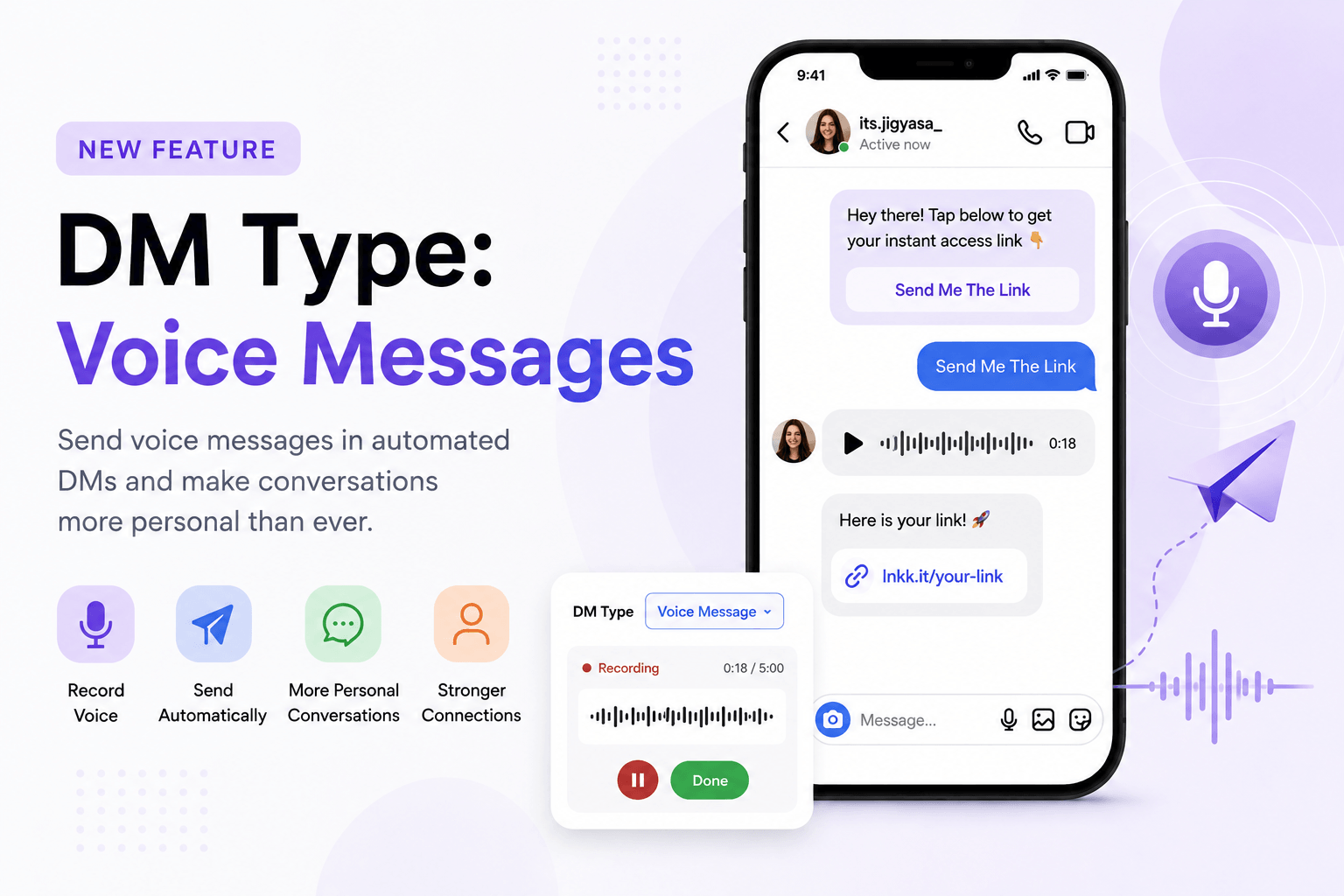
Voice Messages let you record and send an audio message directly from the Lnkk Auto DM automation editor.
When creating an automation, simply select Voice message as the DM type and upload your voice recording. The voice message can then be delivered automatically when the automation is triggered.
You can use voice messages as part of your existing DM flows alongside other message types such as text, buttons, images, videos, and cards.
Why Use Voice Messages in Automated DMs?
Text is useful, but voice can add a completely different level of engagement.
Voice messages are especially useful when you want to:
👋 Welcome someone with a personal message
🎯 Explain an offer, product, or service
💡 Share detailed instructions
❓ Answer frequently asked questions
🤝 Build a stronger personal connection
🎙️ Add personality to automated conversations
📚 Provide quick tips or explanations
🚀 Make automated DMs feel less robotic
A short voice message can often communicate emotion and tone more effectively than a paragraph of text.
How to Add a Voice Message
Adding a voice message to an automation is simple.
Step 1: Create or Open an Automation
Go to Auto Reply → Automations in your Lnkk.it dashboard and create a new automation or open an existing one.
You can also start with a pre-built automation template, such as an Auto-DM Links from Comments flow.
Step 2: Configure Your Trigger
Choose what should trigger the automation.
For example, you can configure an automation to start when:
Someone comments on a specific post or reel
Someone comments on any post or reel
A comment contains specific words
Another supported DM trigger is activated
This allows the voice message to become part of a larger automated customer journey.
Step 3: Open the Message Settings
In the Message step, scroll to the section where you configure the DM that will be sent to the user.
Lnkk.it supports multiple DM formats, including:
Text + Button
Image/Video
Card
Voice message
Select Voice message from the DM type dropdown.
Step 4: Upload Your Voice Recording
Once Voice message is selected, upload your audio file using the Upload Voice option.
You can also provide a direct voice-file URL where supported.
After uploading, the editor displays an audio player so you can review the recording before launching the automation.
Step 5: Preview Your Message
The phone preview on the right side of the editor lets you see how the automated conversation will look.
For a voice message, the preview displays an audio message inside the DM conversation, giving you a quick way to verify the flow before publishing.
Step 6: Configure Automation Settings
Once the message is ready, continue to the Settings step.
You can configure options such as:
DM Delay – Set how long to wait before sending the DM.
Cooldown – Control how frequently the same user can receive the automation.
Max DMs/hr – Set a limit for outgoing DMs.
Keyword Match – Define how comment keywords should be matched.
Skip verified accounts – Choose whether verified accounts should be excluded.
Skip accounts you follow – Choose whether accounts you follow should be excluded.
Schedule – Enable scheduling when you want the automation to operate within a specific schedule.
Review the automation and launch it when everything is ready.
Use Voice Messages as Part of a Multi-Step Flow
Voice messages don't have to work alone.
You can combine them with other DM actions to create a complete automated conversation.
For example:
User comments: "LINK"
↓
Automatic comment reply:
"Check your DMs! 👇"
↓
Opening DM:
"Hey there! Tap below to get your instant access link 👇"
↓
User taps the button
↓
Voice Message:
A short personal explanation or welcome message
This approach allows you to combine automation with a more human communication style.
Great Use Cases for Voice Messages
1. Personal Welcome Messages
Creators and personal brands can record a short welcome message for people who interact with their content.
Instead of:
"Thanks for reaching out!"
You can send a quick voice greeting that sounds much more personal.
2. Course and Coaching Businesses
Coaches and educators can use voice messages to explain:
How to access a course
What a program includes
Next steps after registration
Important instructions
Answers to common questions
3. Product Recommendations
Businesses can use voice to briefly explain a product or help customers understand which option may be right for them.
4. Lead Generation
After someone responds to a post or clicks a button, a voice message can provide additional context before asking the person to take the next step.
5. Event Promotion
Send a short voice invitation explaining an upcoming webinar, workshop, event, or launch.
6. FAQs and Support
Some questions are easier to explain by speaking than typing. Voice messages can make automated responses more conversational and easier to understand.
Keep Your Voice Messages Short and Clear
Voice messages work best when they are focused.
Instead of recording a long explanation, aim to communicate one clear idea per message.
A good voice message should:
Get to the point quickly
Use a natural and conversational tone
Clearly explain the next step
Avoid unnecessary background information
Sound like a real conversation rather than a script
For example:
"Hey! Thanks for commenting. I've just sent you the details. Tap the button above and you'll be able to access everything right away."
Short, natural messages can make an automated DM experience feel significantly more personal.
Preview Before You Launch
Before activating an automation, use the built-in preview to check how your DM flow will appear.
Pay attention to:
The order of messages
Your opening text
Button labels
Voice message placement
The overall conversation flow
Whether the voice recording sounds clear
This helps ensure that the automation provides a smooth experience for your audience.
Turn Automated DMs Into More Human Conversations
Automation doesn't have to feel robotic.
With DM Type: Voice Messages, Lnkk gives you another way to bring personality into automated conversations. Whether you're welcoming a new follower, explaining an offer, delivering instructions, or following up with a lead, a short voice message can make the interaction feel more direct and personal.
Create your next DM automation with Voice Messages and give your automated conversations a human voice.